Are you facing various problems while export excel contacts to lotus notes account? If the answer is yes, you don’t need to go anywhere. This blog is specially designed for you where you can get the best solutions for the above questions.
A popular email client is Lotus Notes, now known as HCL Notes, now known as HCL Notes. Manage all information including contacts, calendars, task lists, file sharing, management, instant messages and the entire user library. Lotus Notes exports your files in .nsf file format.
On the other hand, Excel can easily manage many contact information such as email address, business address, contact number, full name, website, etc. So, if you are a user who keeps contact information in an Excel spreadsheet and wants to access it. using Lotus Notes, you can import Excel contacts to the Lotus Notes platform by following the steps below.
Why Move Your Excel Address Book to Your IBM Notes?
There are many factors that affect users and make them change the platform according to their needs.
- The best features of Lotus Notes like contact management, scheduling, tasks, search, etc. are suitable for professional needs. Hence, people prefer to switch to IBM Notes.
- At the business level, safety is the most important thing. Lotus Notes uses IBM Domino as a server and uses advanced security standards to protect data.
- When people change jobs or their companies decide to change email applications, they are forced to switch from one email to another
Automatic Solution to Export Excel Contacts to Lotus Notes Profile
Excel to vCard Converter Software allows you to import contacts from Excel XLS, CSV or XLSX format to Lotus Notes address book. This application allows you to save Excel CSV files to vCard format with 100% data reliability. This tool is a product tested by our team of experts to convert Excel address book to NSF in the most efficient way. Many useful and powerful features make it the best choice for exporting contacts from Excel to Lotus Notes mailbox. An easy-to-use interface with a lot of power ensures accurate results without risk.
SysTools also provides free samples of the utility to help users test the performance and functionality of the application. Trial version of the tool allows the user to move the first 25 Excel contacts. Users can check the steps below to know the complete working process of XLS to VCF Converter software.
Export Excel Contacts to Lotus Notes in Quick Steps
- Free Download, Install and open the tool, click Browse

Then select the Excel XLS, CSV, XLSX file and click Open

- Preview Microsoft Excel Contacts with contents of selected XLSX/XLS/CSV files

- In the next window, map the MS Excel field to the vCard field. Click Next

- Next, select your vCard version: 2.1, 3.0 and 4.0 and click “Convert” to start the import process

- All contact information from Excel files is now only stored in VCF format, which can be easily imported into Lotus Notes.
Import vCard Contacts into Lotus Notes
- First, you need to start the Lotus Notes email application and enter your account login information such as username and password.
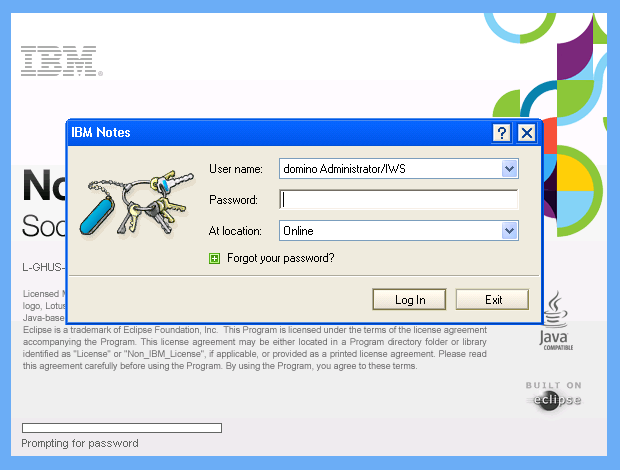
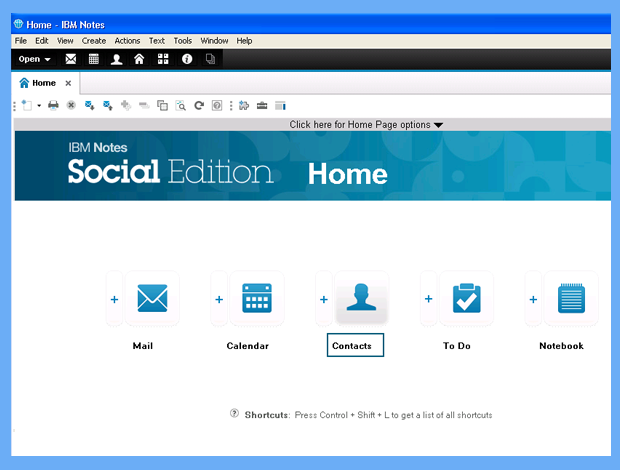
- Now go to the Contacts section and add your contacts in Excel to your Lotus Notes profile
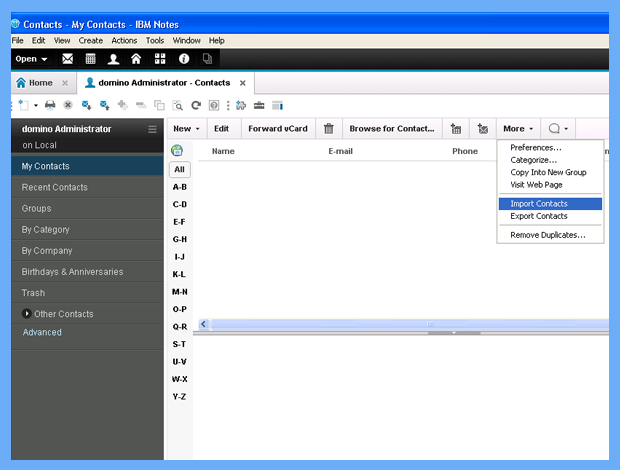
- In the account interface, click Add settings and select Import contacts from the drop-down menu
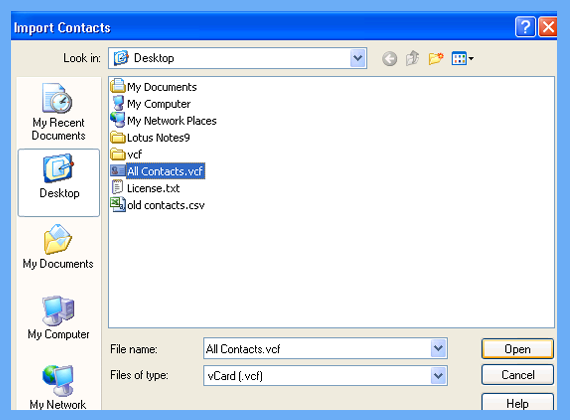
- Now browse the VCF file exported by the conversion process above and click Open to import contacts from Excel to Lotus Notes
- If the number of items in the Excel address book sent to Lotus Notes exceeds 250 people, a message box will appear asking you to continue. Click Yes
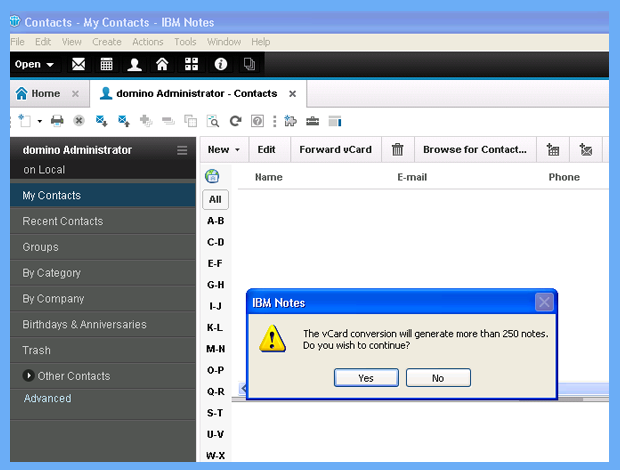
- Users can preview contacts before importing them into an IBM Notes account using Next. Now click on the import option to convert Excel contacts to Lotus Notes

- After a while, the imported contacts will appear in the address book of your Lotus Notes account.

Conclusion
As a techie, we expect this product to score 9.8 out of 10. Because if the tool bulk export excel contacts to Lotus Notes, it is a ten out of ten product . However, other functions provided by the software show that this tool is one of the best automatic applications. Moreover, this state-of-the-art utility does not require any technical knowledge or manual to operate the device, so all users and non-device users can easily use it. without any problems. Users can choose this software to transfer files quickly and easily.
Read More: How to Import Excel Contacts into Gmail